
Login & Authentication
Learn how to access your account securely.
Web Application
Section titled “Web Application”- Open your web browser (Chrome, Firefox, Safari, or Edge)
- Navigate to your organisation’s login URL:
Mobile Applications
Section titled “Mobile Applications”Download the appropriate app for your organisation:
Mobile App
- iOS: Download from App Store
- Android: Download from Google Play
After downloading, open the app on your device to begin.
Login to your account
Section titled “Login to your account”Step 1: Enter Your Email
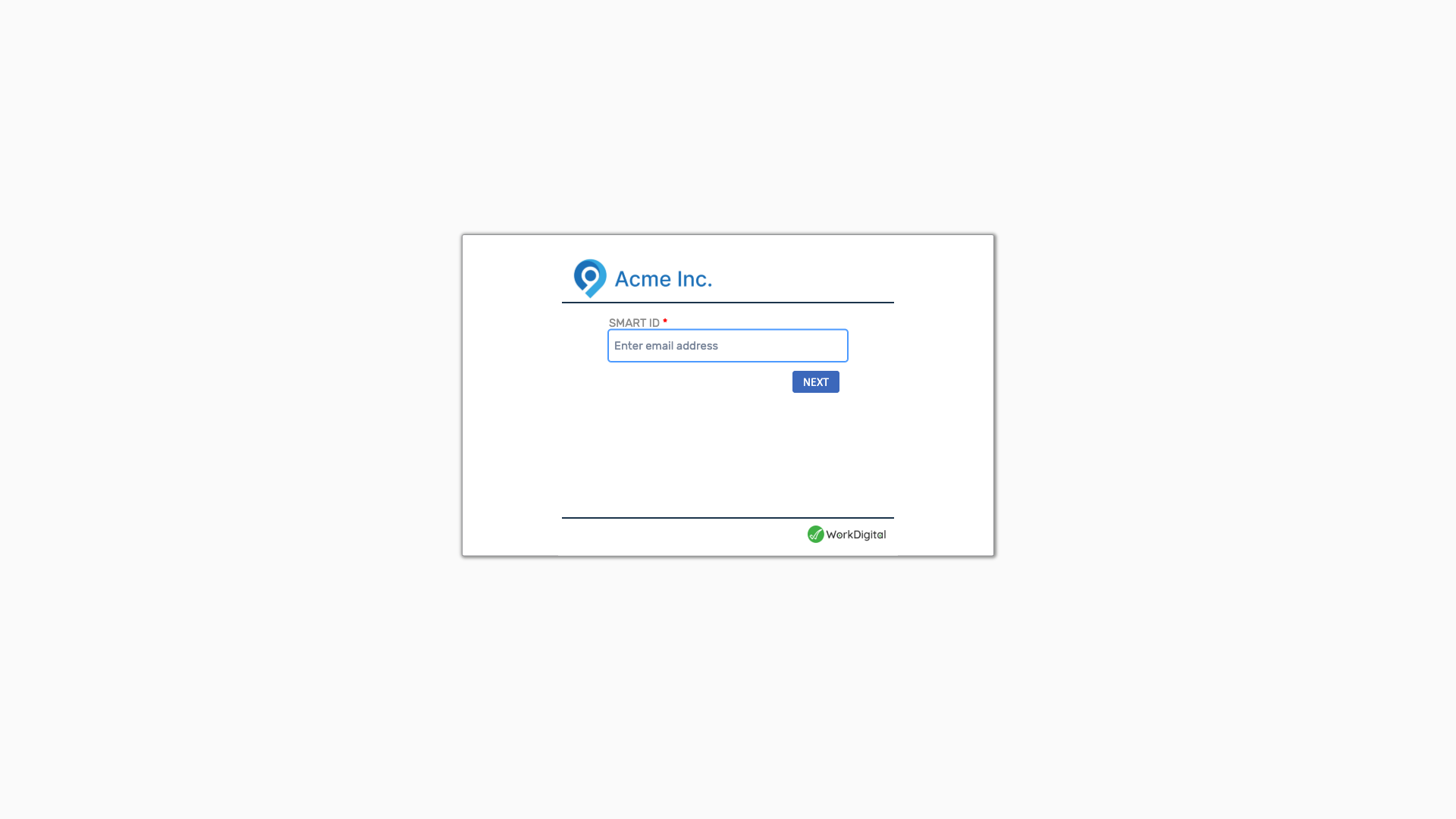
Section titled “Step 1: Enter Your Email”- On the login page, you’ll see a field labeled “Enter email address”
- Type your work/personal email address (e.g.,
john.smith@yourcompany.com) - Click the Next button
Step 2: Sign-In with One Time Code
Section titled “Step 2: Sign-In with One Time Code”The recommended and most secure sign-in method is using a One Time Code:
- After entering your email, select “Sign-In with One Time Code”
- Click the button to request a code
- Check your email inbox for a message with the subject “Sign-In Code”
- Copy the code from the email (it will look like a 6-8 digit number)
- Enter the code on the login page
- Click Sign-In
Important Notes:
- The code is valid for only 15 minutes
- Do not share this code with anyone
- The email will be sent from our email secure system
- On mobile devices, the code may auto-fill automatically
Alternative Sign-In Methods
Section titled “Alternative Sign-In Methods”If configured by your organisation, you may also see:
- Sign-In using SSO - Use your company’s Single Sign-On (SSO)
Successful Login
Section titled “Successful Login”After successful authentication, you’ll be directed to your landing page.
Login Issues
Section titled “Login Issues”Didn’t Receive Your Code?
Section titled “Didn’t Receive Your Code?”If you didn’t receive your One Time Code email:
- Check your spam/junk folder
- Wait a minute and try requesting a new code
- Verify you entered the correct email address
- Contact your administrator if the issue persists
Next Steps
Section titled “Next Steps”Once you’re logged in, learn how to: