
Navigation Guide
Our system is designed with intuitive navigation to help you find what you need quickly. This guide covers the two main levels of navigation in the system.
HR Management: Your Starting Point
Section titled “HR Management: Your Starting Point”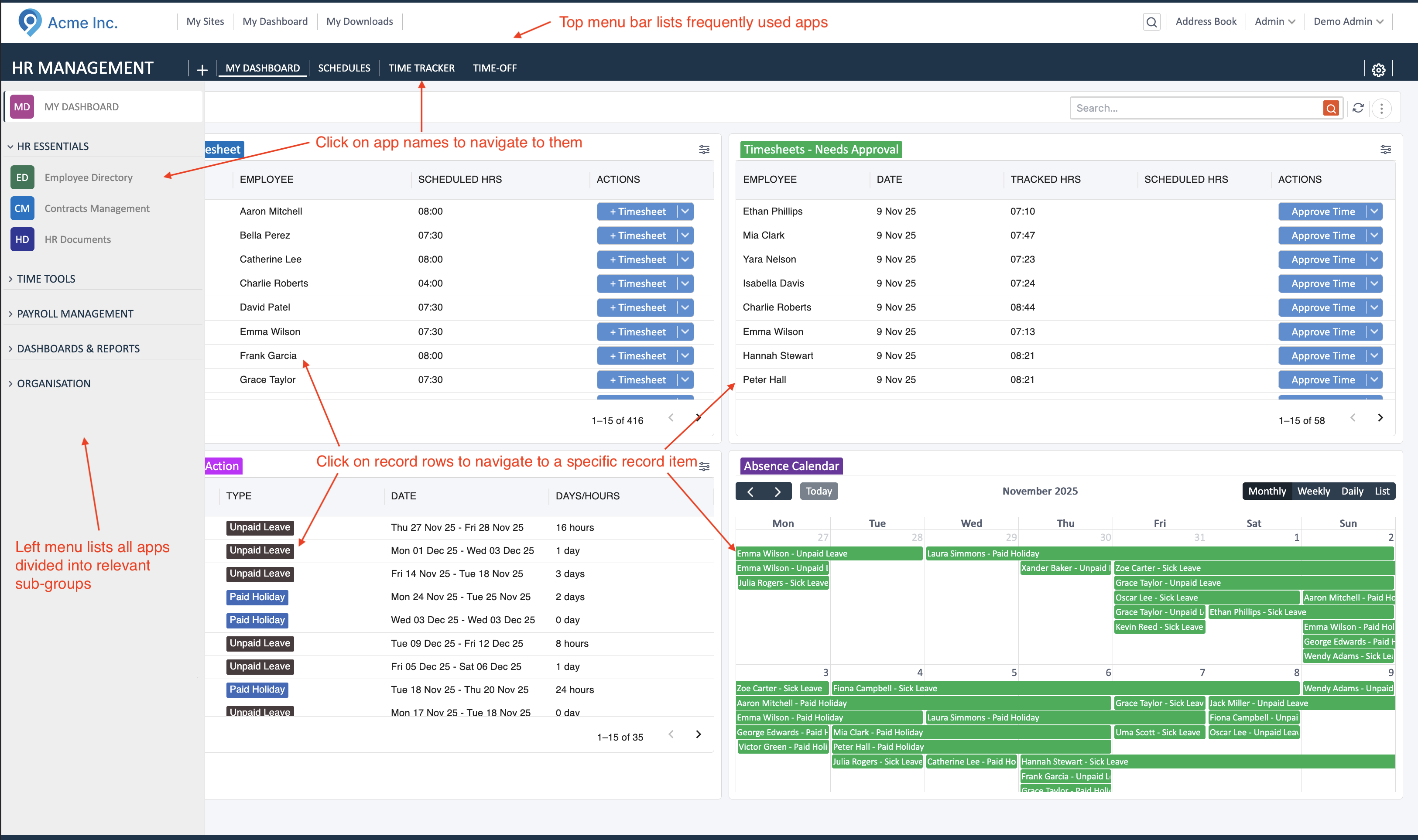
When you log in, you’ll land on the HR Management - your central hub for accessing all features. The HR Management module is organized into two main areas:
1. Left Sidebar Menu
Section titled “1. Left Sidebar Menu”The sidebar organizes all apps into logical groups:
- HR Essentials - Employee Directory, Contracts Management, HR Documents
- Time Tools - Time tracking and attendance features
- Payroll Management - Payroll processing and reports
- Dashboards & Reports - Analytics and reporting tools
- Organisation - Company structure and settings
Click on any menu item to navigate to that app. Click on section headers to expand or collapse groups.
2. Content Area
Section titled “2. Content Area”The main content area displays apps, dashboards with also lists quick action items:
- View timesheets that need approval
- See upcoming time-off requests
- Check the absence calendar for team availability
- Access recent actions and pending tasks
Click on any app name in the sidebar to open it in the content area. Click on table rows to view detailed records.
App View: Working with Apps and their reportv views - Lists, Cards, etc.
Section titled “App View: Working with Apps and their reportv views - Lists, Cards, etc.”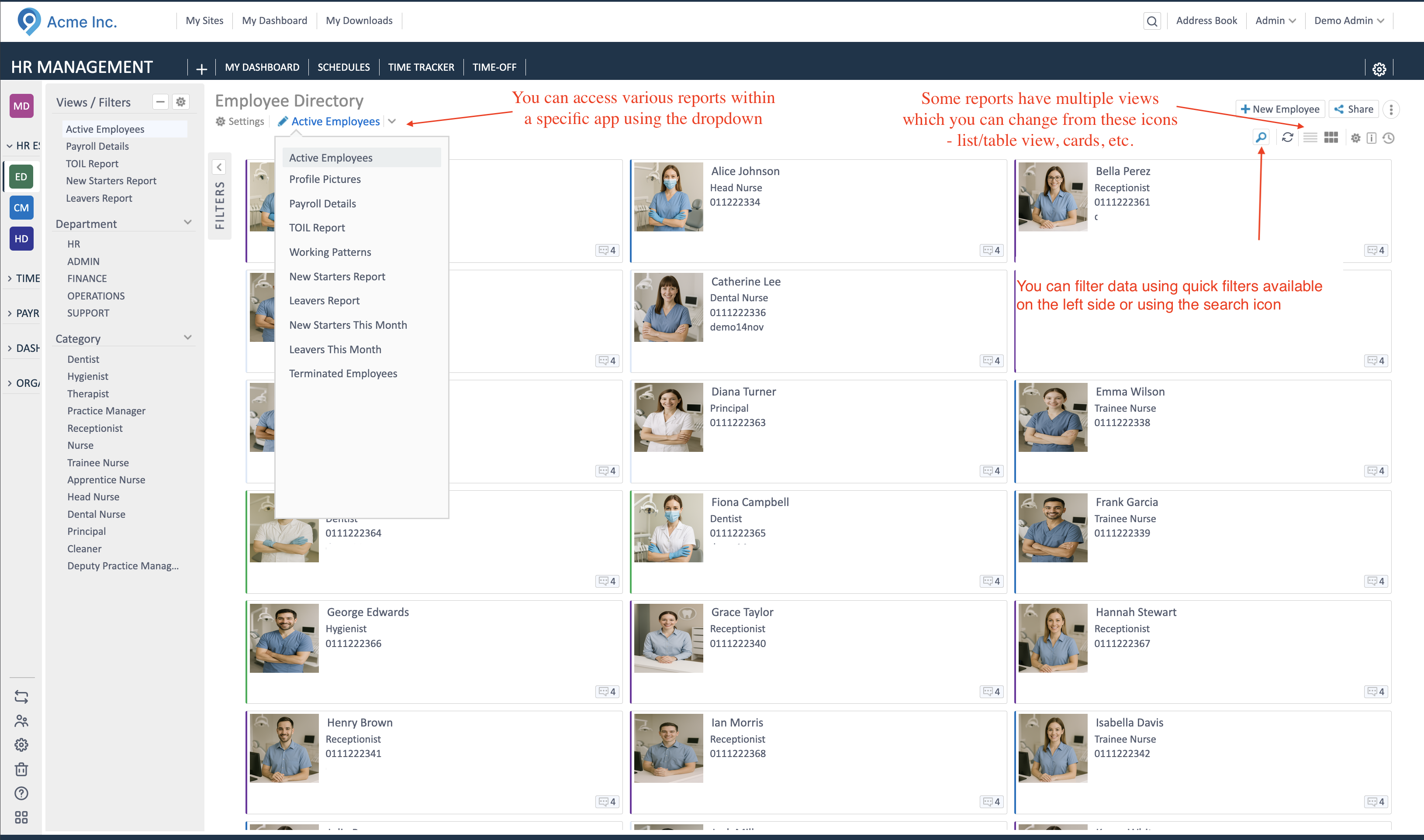
When you open an app (like Employee Directory), you’ll see a powerful data management interface:
Views and Filters Panel (Left)
Section titled “Views and Filters Panel (Left)”Use the left panel to refine what data you see:
- Views/Filters - Switch between different predefined views (e.g., “Active Employees”, “Payroll Details”)
- Department - Filter by specific departments
- Category - Filter by job roles or categories
Views and Reports Dropdown
Section titled “Views and Reports Dropdown”Access different reports and views within an app:
- Click the dropdown next to the app name to see available views
- Choose from options like “Active Employees”, “Profile Pictures”, “Payroll Details”, “New Starters Report”
- Each view shows different data columns relevant to that perspective
View Layout Options (Top Right)
Section titled “View Layout Options (Top Right)”Change how data is displayed using the icons in the top-right:
- List/Table View - Traditional row-based layout
- Card View - Visual cards with photos and key info
- Grid View - Compact grid layout
Search and Quick Filters
Section titled “Search and Quick Filters”- Use the search box to find specific records quickly
- Apply quick filters from the left panel to narrow down results
Record Details View: Viewing and Editing Records
Section titled “Record Details View: Viewing and Editing Records”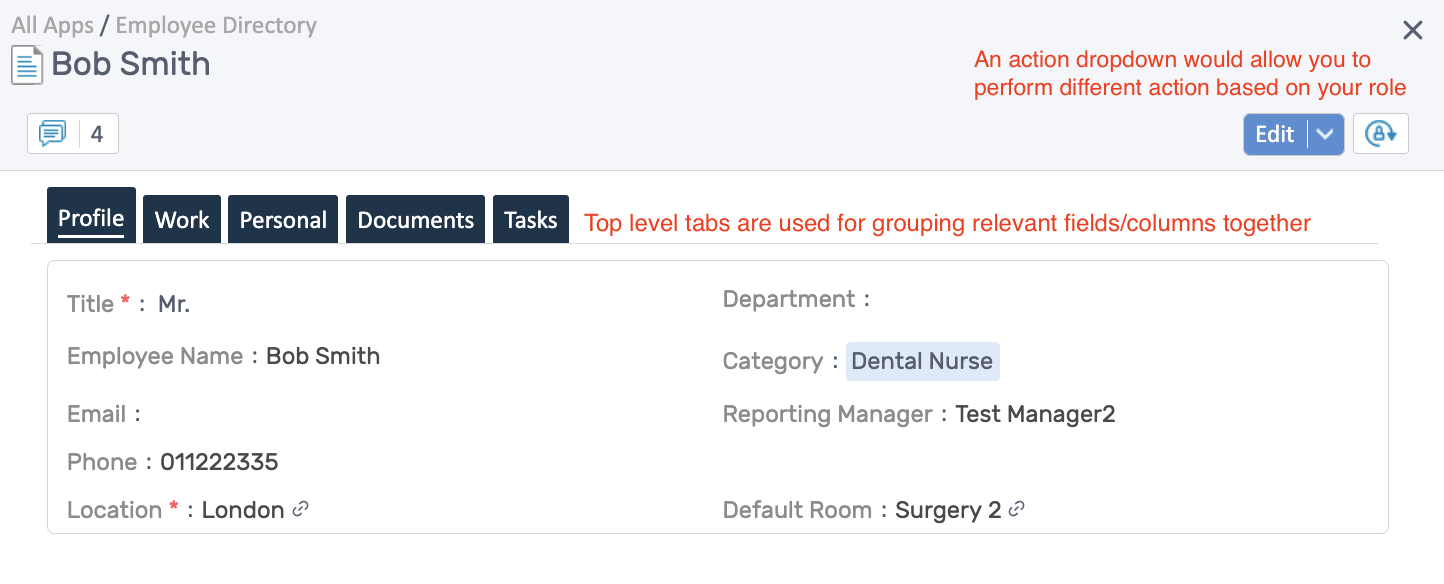
When you click on a record from a list, you’ll open the detailed view:
Action Dropdown (Top Right)
Section titled “Action Dropdown (Top Right)”The Edit dropdown button allows you to:
- Edit the record
- Perform role-specific actions
- Access additional options based on your permissions
Tabbed Interface
Section titled “Tabbed Interface”Records are organized into tabs to group related information:
- Profile - Basic employee information
- Work - Employment details and work-related data
- Personal - Personal information
- Documents - Related files and documents
- Tasks - Assigned tasks and activities
Click on any tab to view that section of information.
Field Layout
Section titled “Field Layout”Information is displayed in a two-column layout:
- Left column - Primary fields like Title, Employee Name, Email, Phone, Location
- Right column - Additional fields like Department, Category, Reporting Manager, Default Room
- Required fields are marked with a red asterisk (*)
- Linked fields (like Location and Default Room) have a link icon you can click to view that related record
Navigation Tips
Section titled “Navigation Tips”Quick Navigation
Section titled “Quick Navigation”- Click X in the top-right corner to close detail views and return to the list
- Use the left sidebar to switch between different apps at any time
Efficient Workflows
Section titled “Efficient Workflows”- Use filters to narrow down records before searching
- Switch view layouts to find the format that works best for your task
- Access different reports using the views dropdown within each app
- Click directly on record rows to open details quickly
Getting Around
Section titled “Getting Around”- Dashboard - Your home base; access from the sidebar
- App Lists - Where you view and manage multiple records
- Record Details - Where you view and edit individual records
Next Steps
Section titled “Next Steps”Now that you understand the navigation structure:
- Complete initial setup - Configure your system
- Learn about specific modules - Deep dive into features