
Locations
Overview
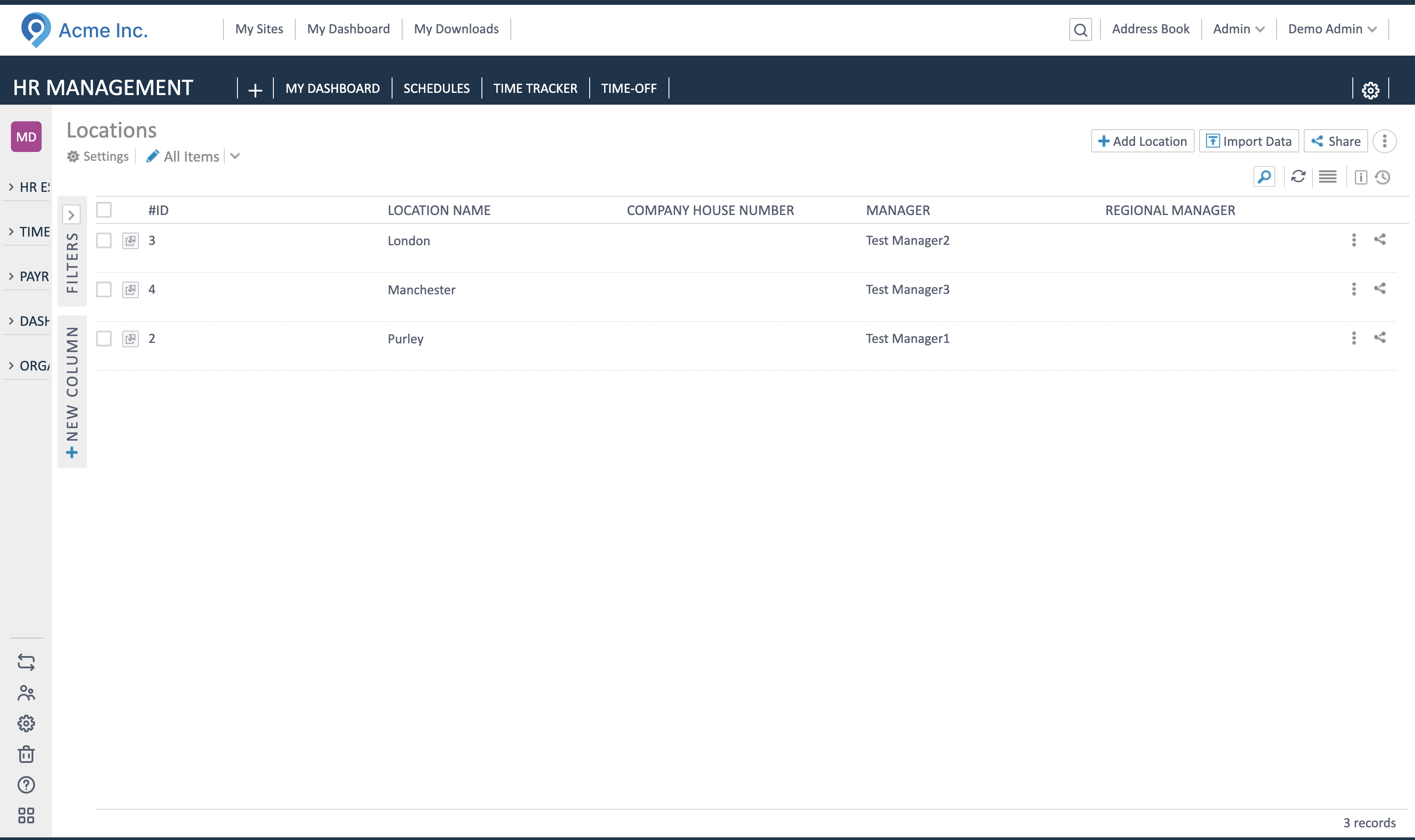
Section titled “Overview”Locations represent the physical offices, practices, or facilities within your organisation.
Accessing the Locations App
Section titled “Accessing the Locations App”- Navigate to the main HR Management dashboard
- Click on HR MANAGEMENT in the sidebar
- Select ORGANISATION from the menu
- Click on Locations in the left navigation panel
Adding a New Location
Section titled “Adding a New Location”- On the Locations list page, locate the Add Location button at the top of the page
- Click the Add Location button
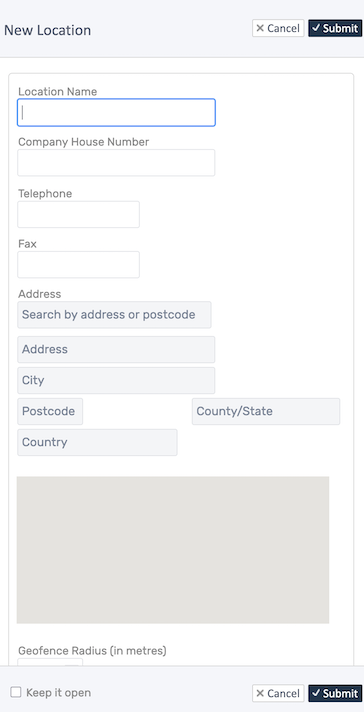
- Enter the name of location (e.g., “Purley”, “London”, “Manchester”) and it’s address
- Fill any of the remaining details as appropriate.
- Click the Submit button to save the location
Viewing Location Details and QR Code
Section titled “Viewing Location Details and QR Code”Step 1: Select a Location
Section titled “Step 1: Select a Location”- On the Locations list page, find the location you want to view
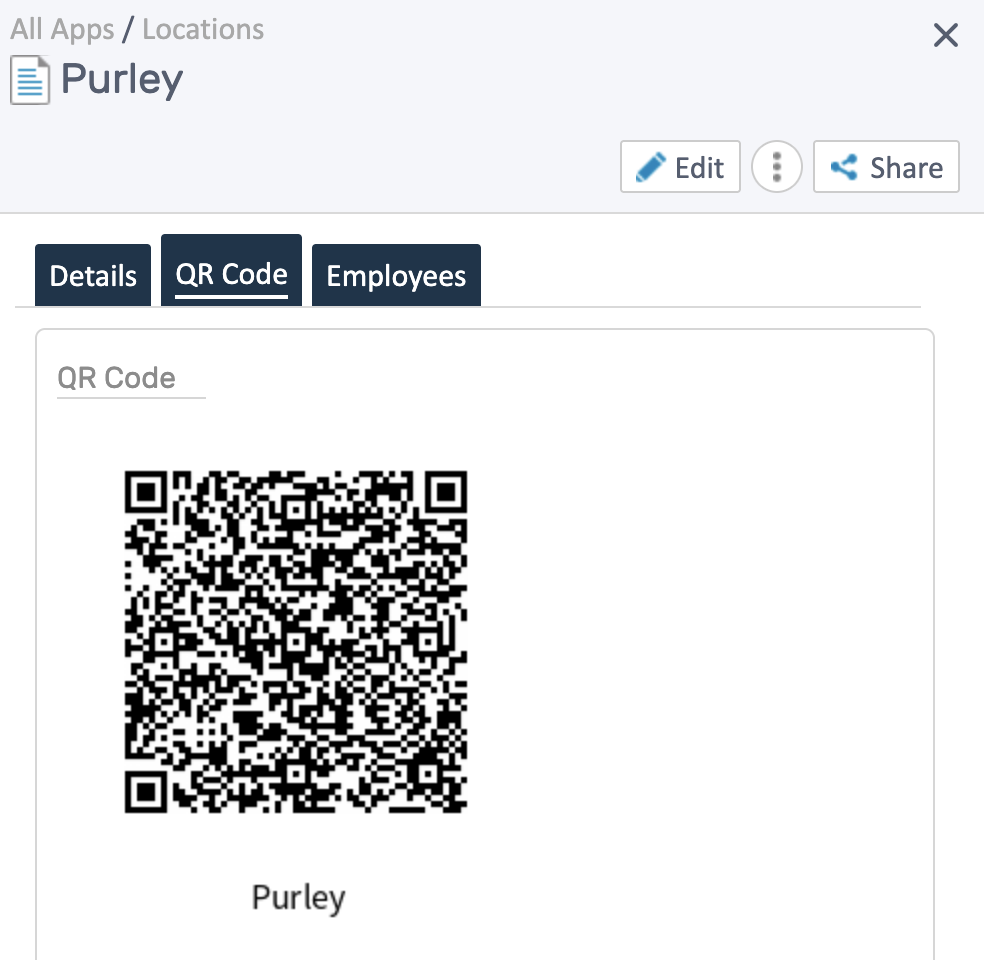
- Open the location’s record details page
- Switch to the QR Code tab to view QR code for that location.
Related Topics
Section titled “Related Topics”- Creating Rooms and Areas within Locations
- Assigning Employees to Locations
- Organisation Setup
- Location-Based Shift Management