
Updating Working Patterns
When to Use This Guide
Section titled “When to Use This Guide”Use a direct update (this guide) when:
- Correcting onboarding errors
- The working pattern was incorrectly assigned initially
- No contractual change has occurred
Use a contract amendment (see Contract Amendments) when:
- There’s a contractual change in working pattern
- Contracted hours/days worked per week change
- The change needs an effective date and history tracking
Update Working Pattern (During Onboarding)
Section titled “Update Working Pattern (During Onboarding)”For onboarding corrections only:
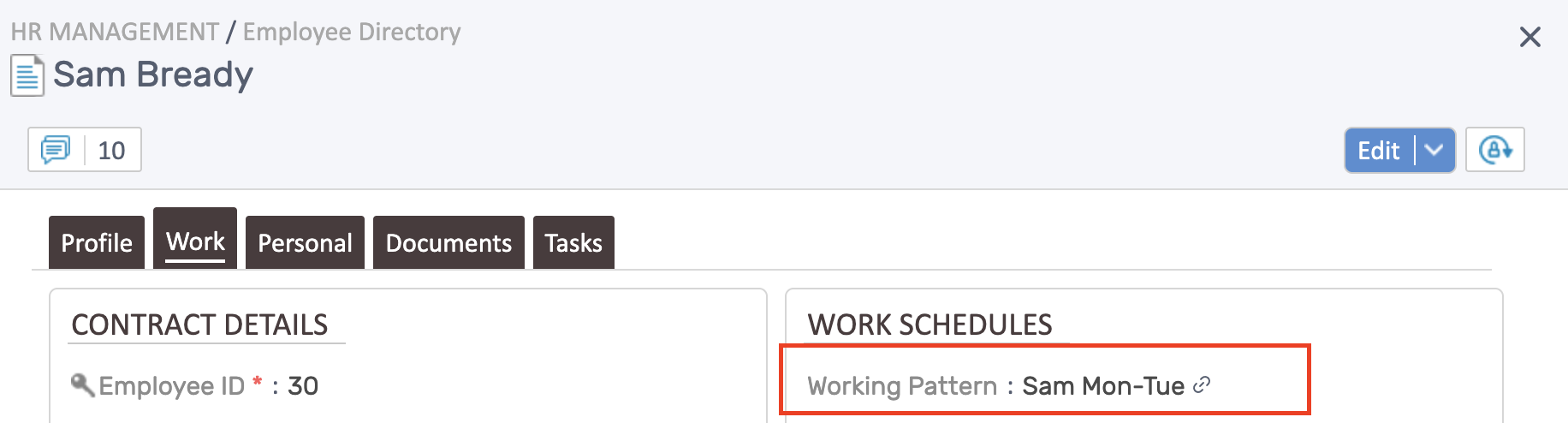
- Open the employee’s profile → Work tab
- Click the link next to the Working Pattern field
- Update the pattern details (times, breaks, days, cycle)
- Click Save
Need a new pattern? See Working Patterns to create one first.
For Contractual Changes
Section titled “For Contractual Changes”If there’s a contractual change (not an onboarding error), use a contract amendment instead. This:
- Preserves history with effective dates
- Updates scheduling, timesheets, and time-off calculations automatically
- Maintains audit trails
Common Scenarios
Section titled “Common Scenarios”Wrong pattern during onboarding? Use the direct update method above.
Employee moving from full-time to part-time? Create a contract amendment.
Can’t find the working pattern link? Ensure a working pattern is already assigned to the employee.
Related Topics
Section titled “Related Topics”- Working Patterns - Create and manage working patterns
- Contract Amendments - Handle contractual changes with effective dates
- Adding Employees - Complete onboarding process