
Digital Contracts
Overview
Section titled “Overview”Digital Contracts allows you to issue employment contracts electronically. The system uses your contract templates to generate the contract wording, replacing placeholders with actual employee and company details. Each contract goes through an HR approval process followed by a two-step e-signature workflow — company signatory first, then the employee — with automatic PDF distribution once both parties have signed.
When to use
Section titled “When to use”- Issuing a contract to a new starter during onboarding.
- Issuing a new contract to an existing employee (e.g. promotion to a new role requiring a fresh contract).
Create a digital contract
Section titled “Create a digital contract”You can create a digital contract from two places:
- New Starters app — open the new starter record and use the Create Digital Contract action.
- Employee Directory — open the employee record and use the Create Digital Contract action.
Fill in the contract details
Section titled “Fill in the contract details”The form pulls in known details from the employee or new starter record. Complete the remaining fields:
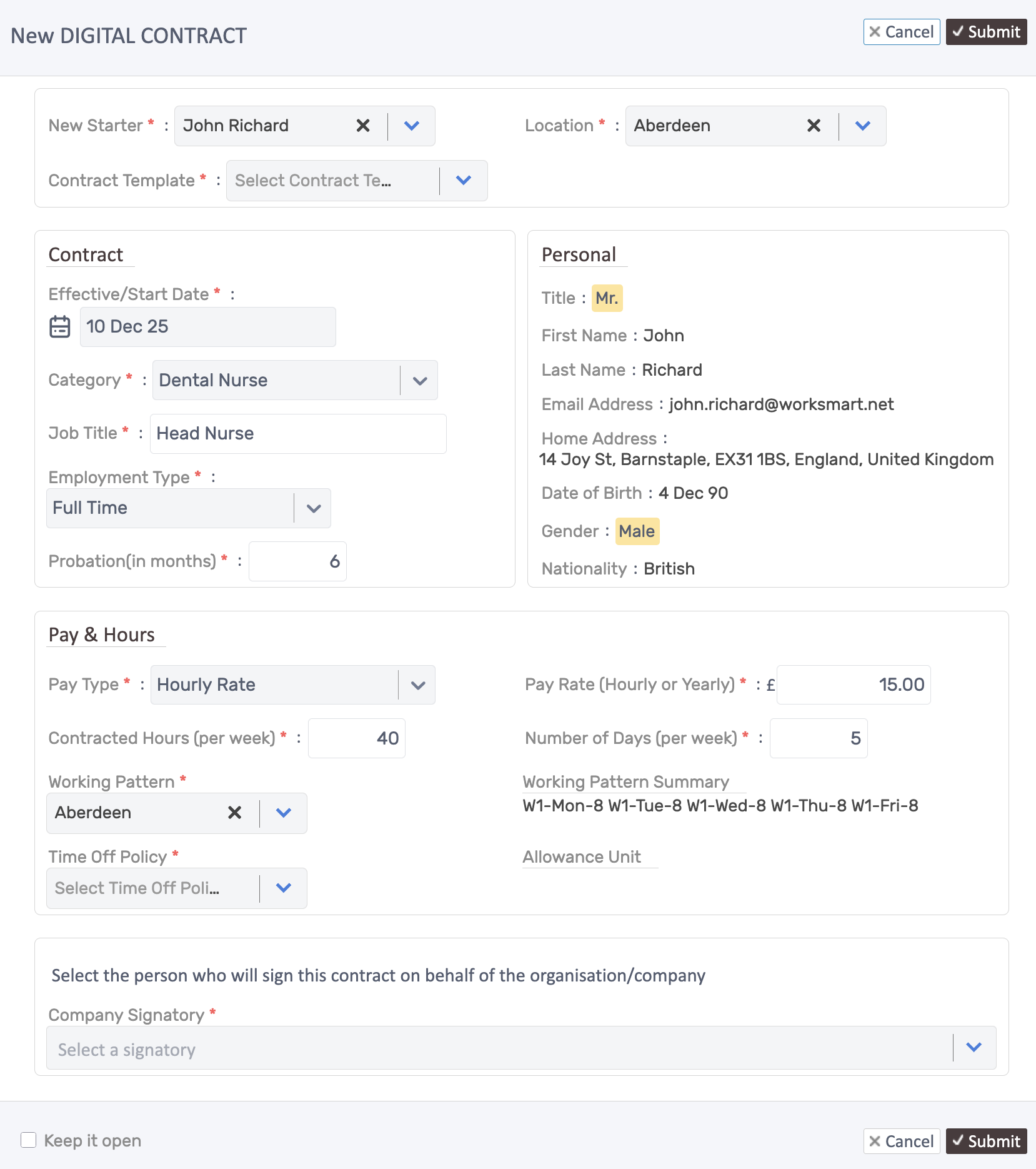
- New Starter / Employee — pre-filled based on the record you opened the action from.
- Contract Template — select the template to use. The system will copy the template wording and replace placeholders with the values entered on this form.
- Fill in Contract details :
- Effective/Start Date — mandatory - when the contract takes effect.
- Company Signatory — select the person who will sign the contract on behalf of the organisation.
- Click Submit.
Approval and e-signature process
Section titled “Approval and e-signature process”Once submitted, the digital contract follows this workflow:
- HR Approval — the contract is sent for HR review and approval.
- Company signatory e-signs — on approval, the company signatory receives an email with a link to the digital contract. They open it and sign electronically.
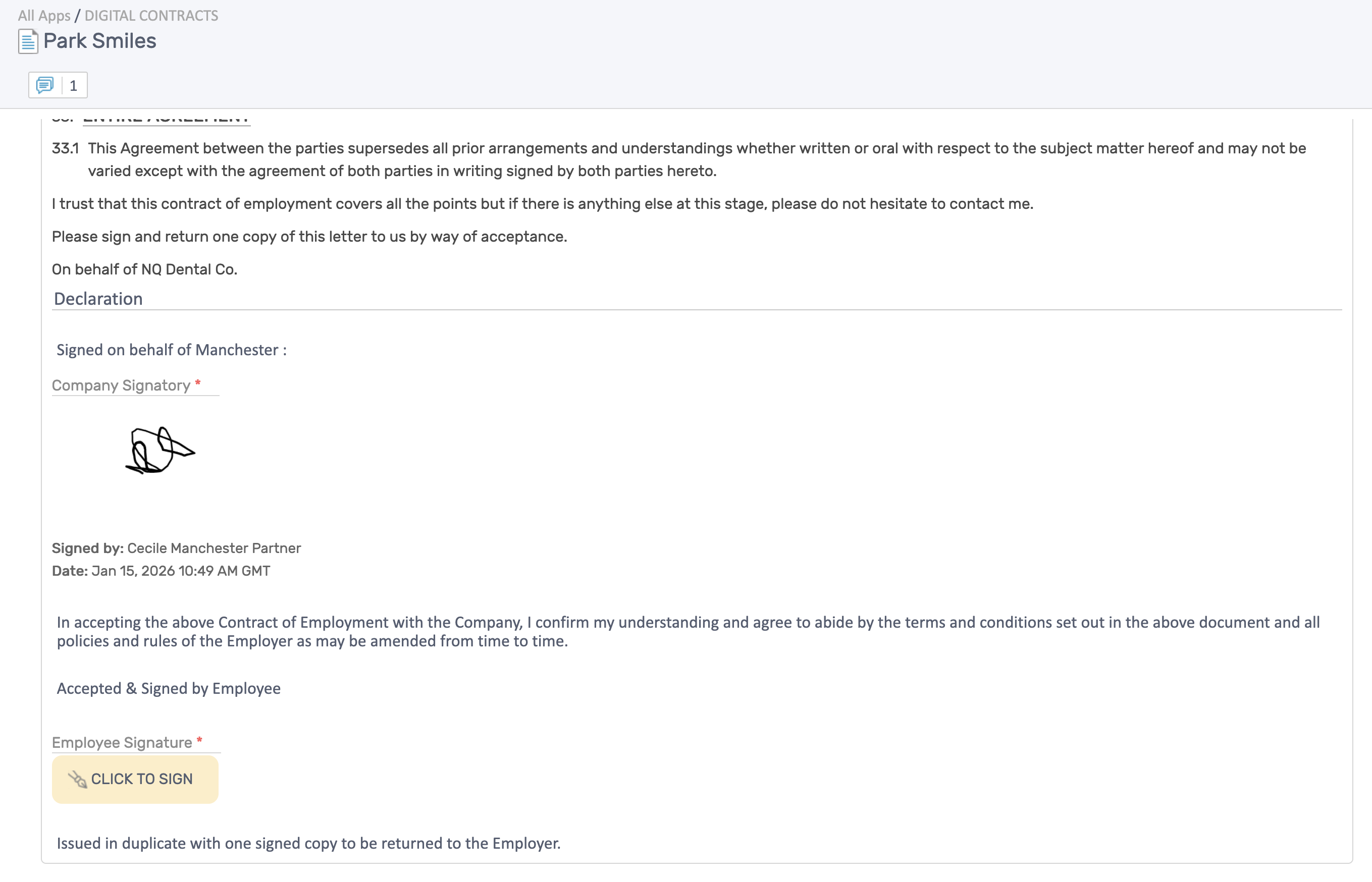
- Employee e-signs — once the company signatory has signed, an automatic email is sent to the employee with a link to review and sign the contract.
- Signing the contract — both the company signatory and the employee use the signature pad to sign. They can type or draw their signature, confirm it is their own, and click Accept & Sign.
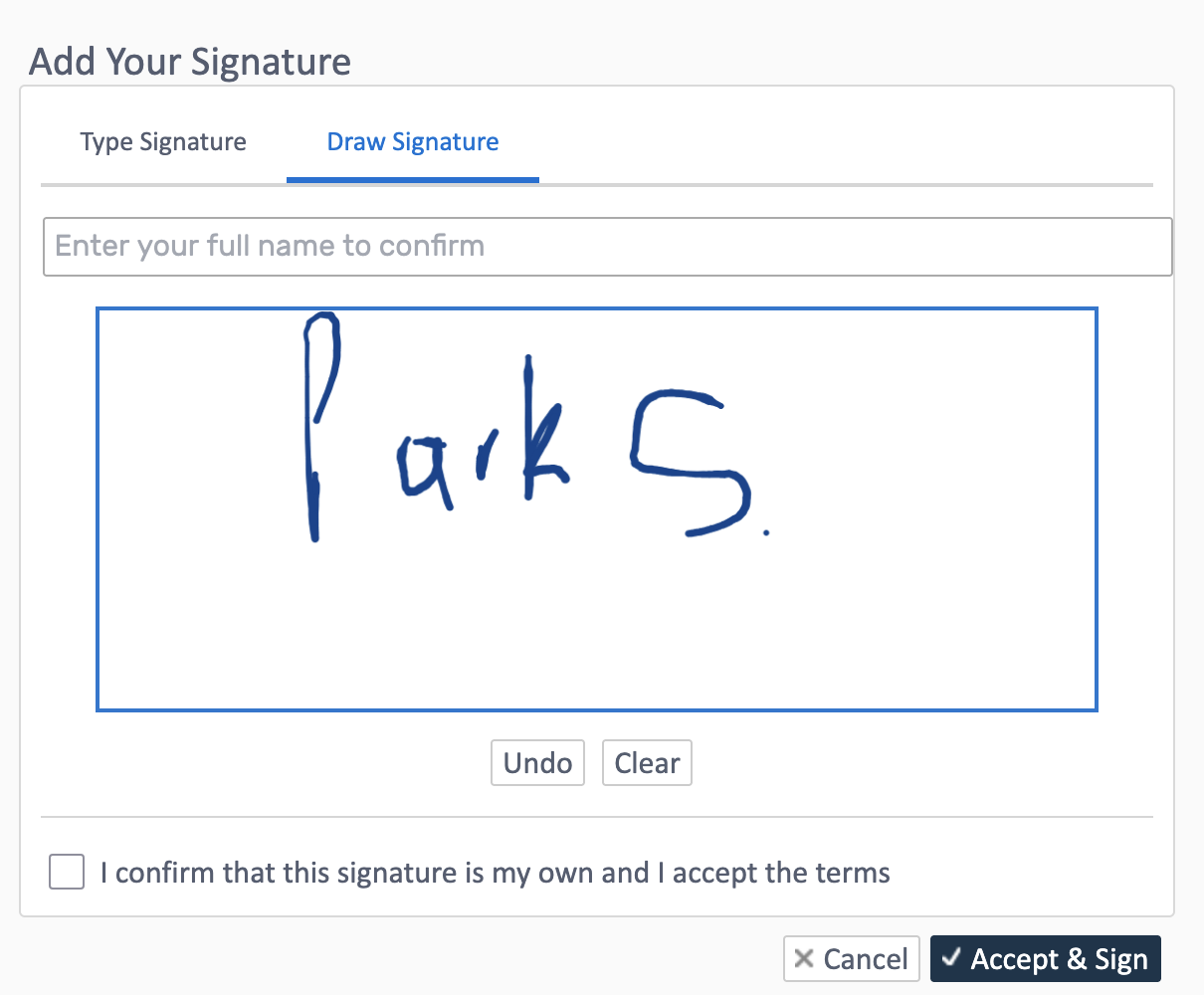
- PDF distribution — once both parties have signed, the record is locked and a signed PDF copy is automatically emailed to:
- The employee.
- The company signatory.
- Any other relevant teams configured to receive a copy.
Good practice
Section titled “Good practice”- Ensure the contract template is up to date before issuing contracts — placeholder values are pulled at the time of creation.
- Double-check employee personal details and pay information before submitting.
- Choose the correct company signatory — they will be the first to receive the signing request.
- The signed contract PDF serves as the official record — it is automatically stored and distributed.
Related Topics
Section titled “Related Topics”- Contract Templates — Create and manage reusable templates
- Contract Amendments — Amend an existing contract without re-issuing
- Adding Employees — Create new employee records
- Managing Records — Update employee information