
Contract Amendments
Overview
Section titled “Overview”Contract Amendments allow you to make changes to an existing employee’s contract without re-issuing a full new contract. Use this when you need to change an employee’s pay, role, or contracted hours. Like digital contracts, amendments go through an HR approval process followed by a two-step e-signature workflow — company signatory first, then the employee — with automatic PDF distribution once both parties have signed.
When to use
Section titled “When to use”- Pay change — salary increase, rate adjustment, or change of pay type.
- Role change — promotion, transfer, or change of job title and duties.
- Contracted hours change — change to weekly hours, number of days, or working pattern.
Create a contract amendment
Section titled “Create a contract amendment”- Go to Employee Management → Employee Directory, search for the employee, and open their record.
- Click the Create Contract Amendment action (or New Contract / Contract Amendment).
- Fill in the amendment form:
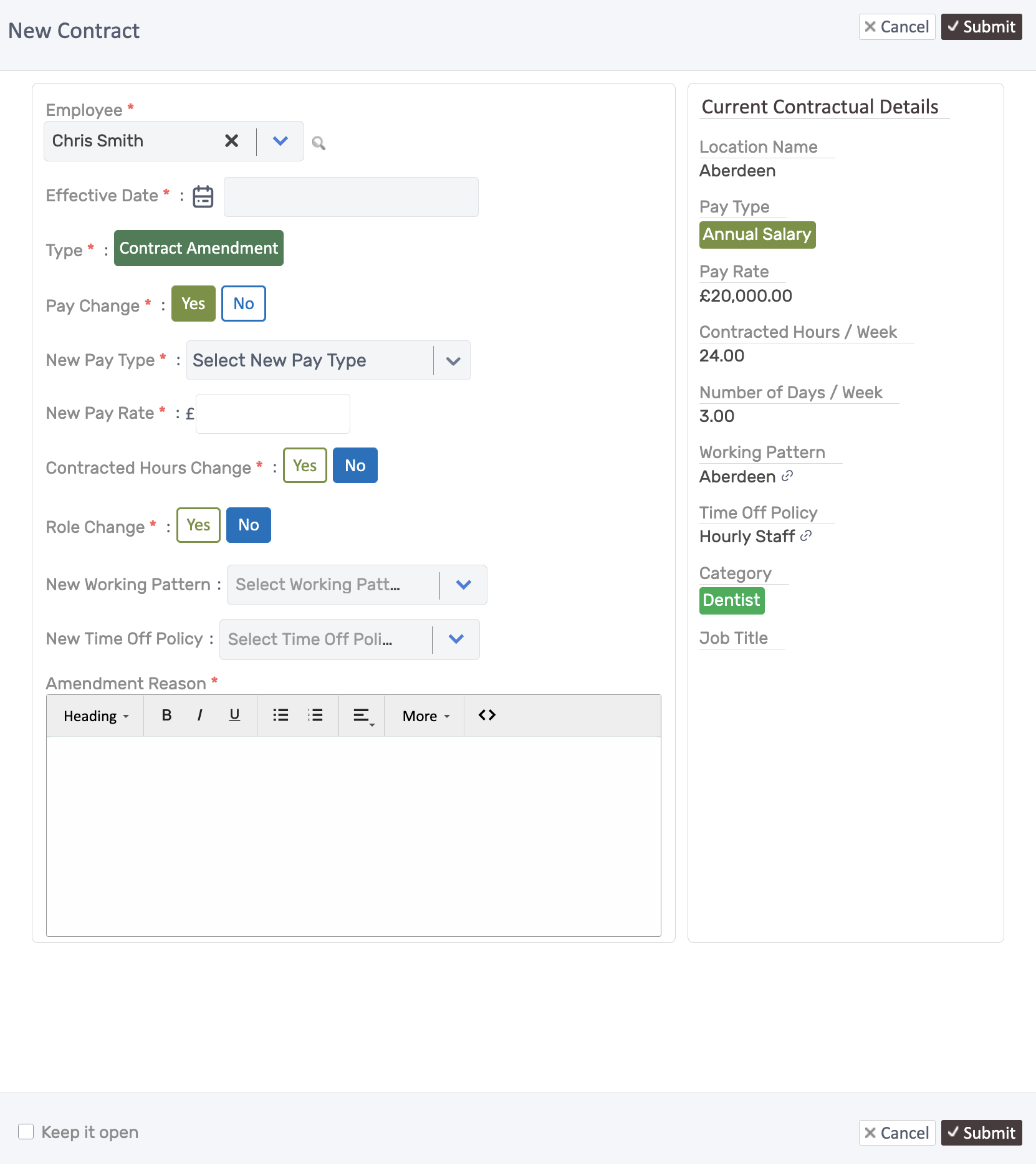
- Set the Effective Date — when the changes take effect.
- Toggle the changes that apply:
- Pay Change
- Contracted Hours Change
- Role Change
- Enter an Amendment Reason — explain what is changing and why.
- Click Submit.
Approval and e-signature process
Section titled “Approval and e-signature process”The amendment follows the same workflow as digital contracts:
- HR Approval — the amendment is sent for HR review and approval.
- Company signatory e-signs — on approval, the company signatory receives an email with a link to review and sign the amendment letter.
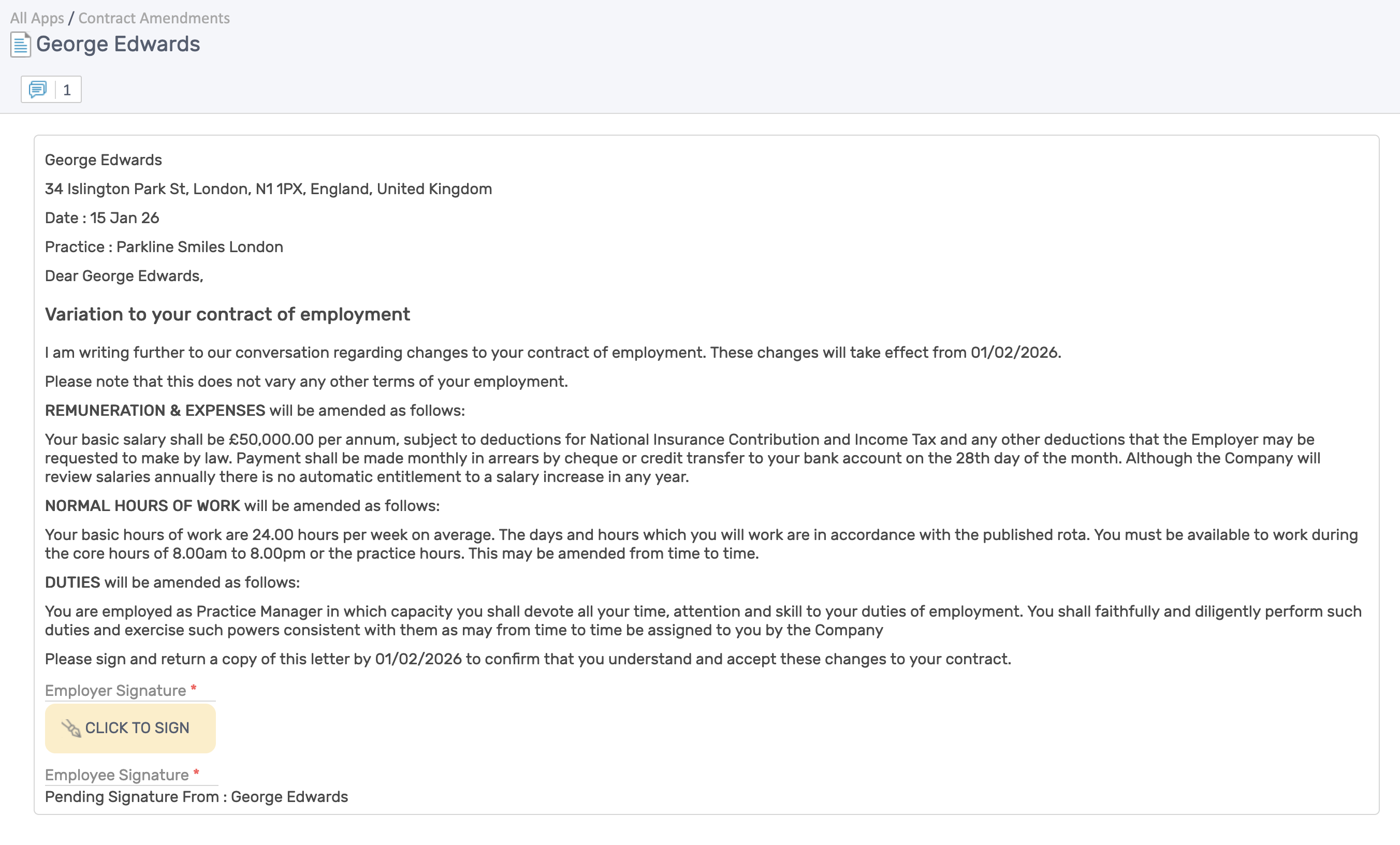
- Employee e-signs — once the company signatory has signed, an automatic email is sent to the employee to review and sign.
- PDF distribution — once both parties have signed, the record is locked and a signed PDF is automatically emailed to:
- The employee.
- The company signatory.
- Any other relevant teams configured to receive a copy.
How it’s used downstream
Section titled “How it’s used downstream”- Rotas / Timesheets — pulls the working pattern that covers the date of each shift or timesheet, handling overlaps from the effective date.
- Leave — applies the time-off policy active on the request date;
- Holiday Allowances — pro-rata allowances based on the effective date and change in contracted hours if any.
Good practice
Section titled “Good practice”- Use one amendment per effective date — avoid stacking multiple changes on the same date.
- Enter clear amendment reasons so audits show what changed and why.
- Double-check working pattern and time-off policy selections before submitting — these drive scheduling and allowance changes.
Related Topics
Section titled “Related Topics”- Digital Contracts — Issue a new contract to an employee
- Contract Templates — Create and manage contract templates
- Managing Records — Update employee information
- Contracts Management — Section overview